Explore
The Explore page is the public-facing home of SuperSplat — an infinite-scroll gallery of every Public splat published on the platform. It's where visitors discover scenes without needing an account.
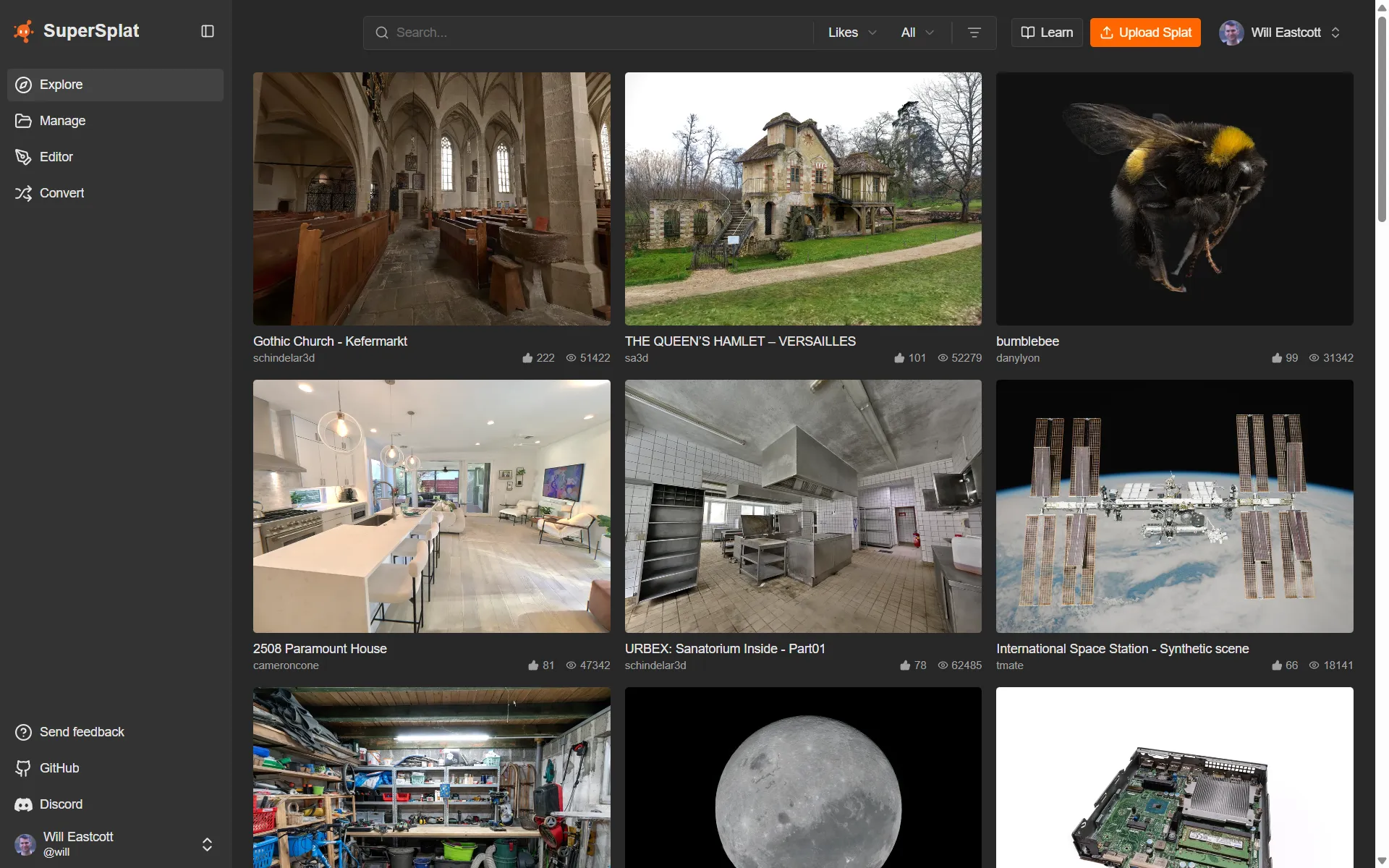
Browsing Explore is anonymous — no PlayCanvas account is required. An account becomes useful when you want to like, comment, or publish your own splats.
Feed tabs
The home page feed is split into tabs:
| Tab | What it shows |
|---|---|
| Trending (default) | Splats gaining the most traction right now. |
Latest (?tab=latest) | The most recently published splats. |
Following (?tab=following) | Public splats from the creators you follow, newest first. Only shown while you're signed in. See Following Creators. |
The grid
Splats are shown as cards with a thumbnail, title, and author. Click a card to open the splat's scene page.
The grid loads progressively as you scroll — the first page returns 32 splats (a 4×8 layout), and each subsequent page returns 16 (2×8). There's no "next page" button; just keep scrolling.
Sorting, filtering, and search
Explore is driven entirely by URL parameters, so any filtered view is a shareable link.
Sort (?sort=...)
| Value | Order |
|---|---|
trending (default) | Splats gaining the most traction right now |
newest | Most recently published first |
oldest | Oldest first |
views | Most-viewed first |
likes | Most-liked first |
largest | Largest file size first |
smallest | Smallest file size first |
Trending is the default view at superspl.at. It ranks splats by a recency-weighted engagement score — recent likes and views count for the most (engagement from the past week or so carries the most weight), with likes weighted above views — and is refreshed periodically, so the page surfaces what's popular now rather than all-time favourites.
Trending already accounts for recency, so it ignores the time window below — that control is hidden while Trending is selected.
Time window (?time=...)
Restricts the result set to splats published within a window. This applies to every sort except trending (the default), which always spans all time — selecting Trending hides the time control and clears any ?time= value from the URL. For the other sorts the window defaults to month (the last 30 days).
| Value | Window |
|---|---|
month | Last 30 days |
day | Last 24 hours |
week | Last 7 days |
year | Last 12 months |
all | No time restriction |
Feature filters (?features=...)
Comma-separated list. The available filters are:
| Value | Splats matching |
|---|---|
walkable | Splats with collision — visitors can walk through them |
downloadable | Splats whose creators have enabled downloads |
Search (?q=...)
The top-nav search bar adds a q= parameter that matches against splat title and description.
Combined example
https://superspl.at/?sort=likes&time=month&features=walkable&q=museum
Most-liked walkable splats published in the last month whose title or description mentions "museum."
Creator profiles
Click a card's author chip to land on that user's profile page — a grid of every Public splat that user has shared, plus their avatar, bio, and social links. From there you can follow them to see their new splats in your Following tab.
See also
- Scene page — what happens when you click a card
- User Profile — browse one creator's published splats
- Manage — set your splats to Public so they appear in Explore